1 - Sign up for Business Profile

Before you can engage with potential customers, make sure your profile is set up and verified on Google.

Customers can only find your business profile on Google after you complete verification.

Create a Business Profile on Google:

  1. On your computer, sign into your Google Account, or create one.
    • If you create a new Google Account, sign up with your business email domain.
  2. Go to create a profile.
  3. Enter the name of your business. You may also be able to select your business from the list of suggested businesses as you type.
  4. Search for your business category.
  5. Click Next.
  6. Choose whether you have a location customers can visit.
    • For businesses with a storefront staffed during business hours: Click Yes.
    • You may be asked to enter your business address or position a marker on a map for the location of your businesses. When finished, click Next.
    • For businesses that don't have a storefront staffed during business hours: Click No.
  7. Enter the service area of your business.
    • You can set your service area based on the cities, postal codes, or other areas that you serve. You can add up to 20 service areas.
      • Tip: We recommend you do not extend the boundaries of your overall area farther than 2 hours driving time from where your business is based. For some businesses, it may be appropriate to have a larger service area.
  8. Enter a phone number and website URL.
  9. Click Next.
  10. Click Finish.
  11. Select a verification option.
    • Tip: We recommend reviewing your information before you request verification.
    • To verify now: At the top, find the red banner and click Verify now.
    • To verify later: Click Verify later Later

2 - Verify Your Business on Google

To update your business name and other info on Google, you must first verify your business. When you verify your business, check that your info is correct and that you’re the only one who can edit it.


To avoid delays, make sure your address meets Google’s guidelines. Learn about address entry guidelines.

Verify for the first time:

  1. Add or claim your Business Profile on Google. Learn how to claim your profile.
  2. When you add or claim your profile, you can verify it through phone, text, email, or video.
    • You may need to verify with more than one method.
    • Available methods depend on things like business category, public info, region, support hours, and volumes.
  3. Pick a type of verification. Learn how to verify by your selected method.
  4. Often, we need to review verifications. These reviews help maintain the integrity of all profiles. They can take up to seven business days.
    • When you’re verified, you get a notification.
    • If we can’t verify your business with the first method, the “Get verified” button shows up again. If this happens, try a different verification method.
  5. After you verify:

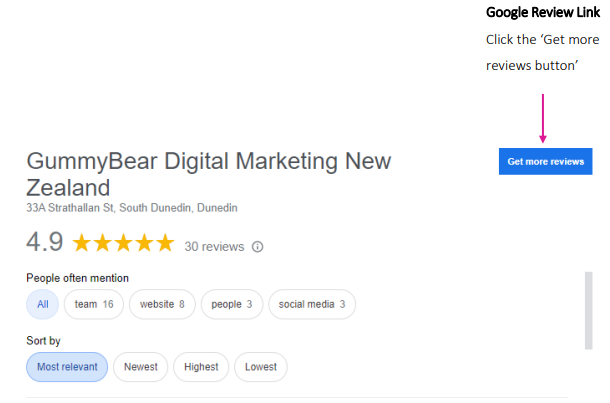
Seeking reviews from customers is simple as sending an email with your review links.

For example:

Morning Bob,Welcome to a new day - could you please take 1 minute to provide a Google review for Gummybear -links below,

Google Review - https://g.page/r/CUqVF9akUQ-EEAg/review

Thank you, legend!

Sweet as,

Jeremy